

Secretario AI: dejé de teclear y empecé a hablarle al ordenador
AI Secretary: I stopped typing and started talking to the computer
I'm going to tell you something I'm a bit embarrassed to admit: I roughly calculated how much time I spent each day typing. Emails, messages, notes, that paragraph you rewrite five times until it sounds right... And the number blew my mind. So I did what any reasonable person would do: instead of typing less, I built an entire application so I wouldn't have to type almost anything.
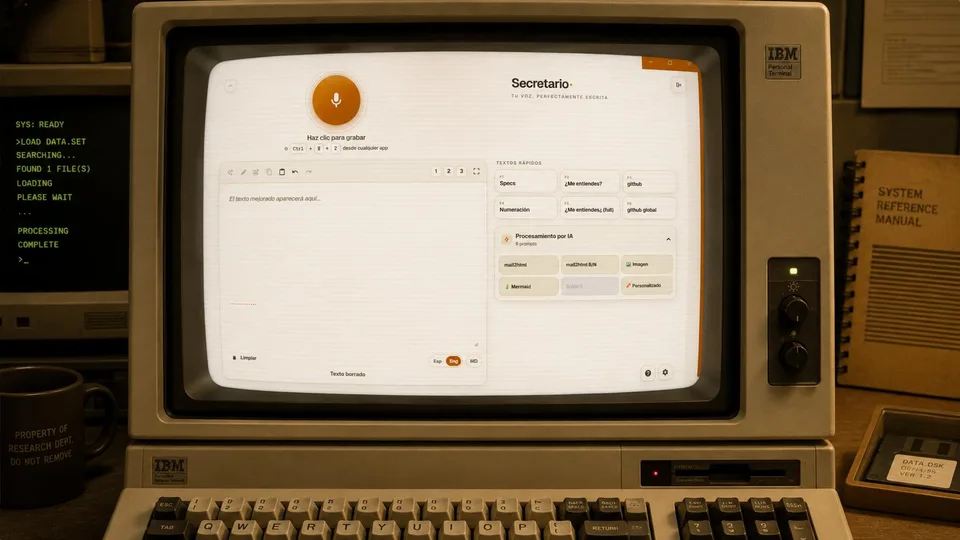
It's called AI Secretary, I built it from the ground up, and since I've been using it my relationship with the keyboard has completely changed. Let me tell you what it does and why it has saved me so much time.
The problem: speaking is faster than typing
The underlying idea is simple and obvious: we speak much faster than we type. The age‑old problem with dictation is that the result came out a mess — no commas, no capital letters, with "eeeh" everywhere — and in the end correcting it cost more than writing it by hand.
That's where AI comes in. AI Secretary records what I say, transcribes it with a powerful voice model (I use Voxtral, from Mistral, with a fallback model just in case) and, if I want, gives it a pass so the text comes out clean, with correct spelling and punctuation. I speak at a run, without thinking about commas, and what appears on screen is already presentable.
What I use most day‑to‑day
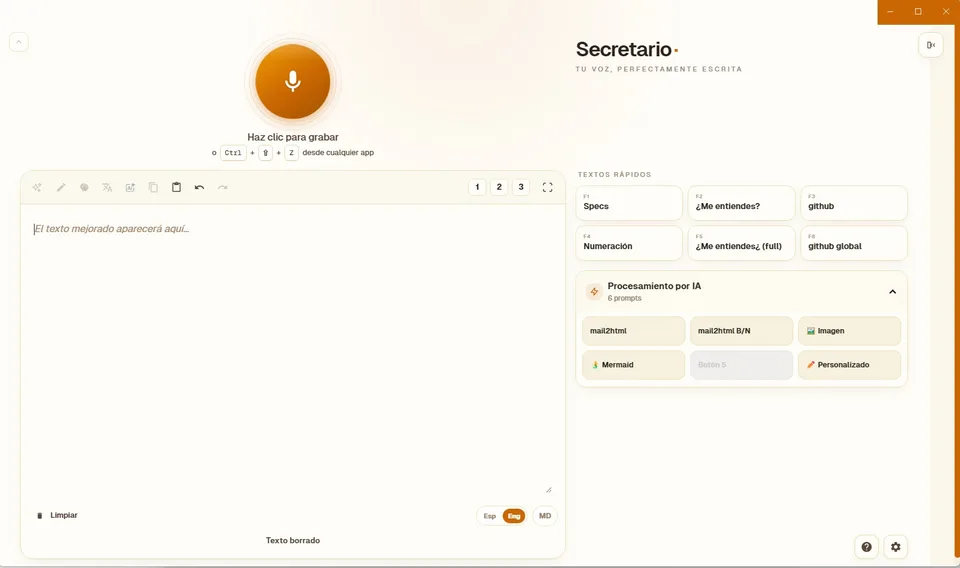
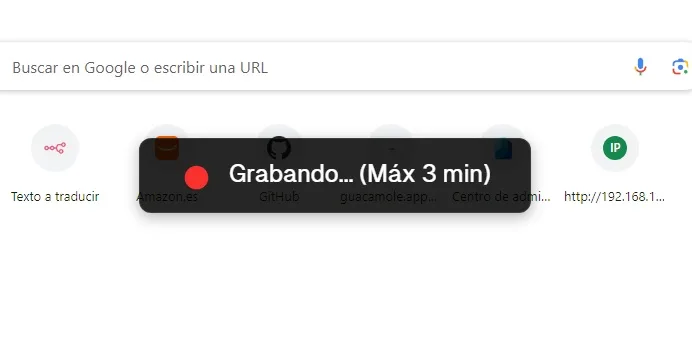
Dictate from anywhere with a shortcut
This is probably my favorite feature. I have a global shortcut set up: I'm writing an email, in the work chat, or any text field, I press the combination, speak, and the transcription pastes itself where the cursor was. I don't even have to switch windows. It's one of those things you use for two days and then can't live without.
Custom AI buttons
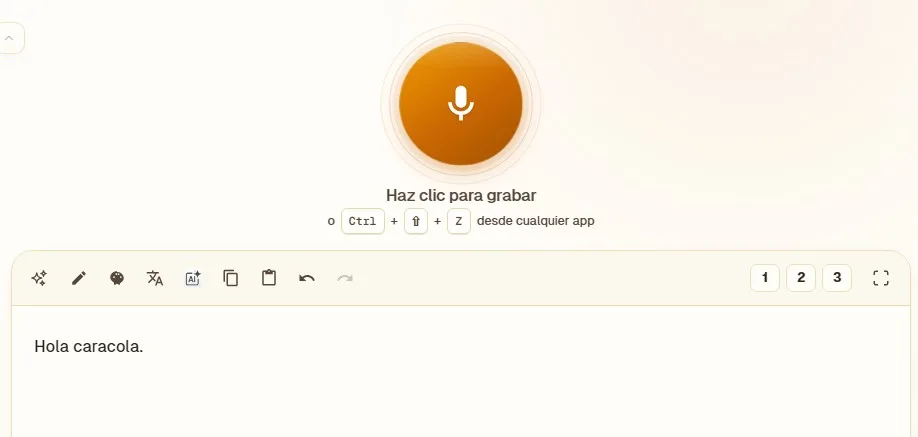
Transcription is just the beginning. I have a row of AI buttons that I configured myself: one summarizes, another formalizes the tone, another translates it into English... Each button is a prompt I write once and reuse forever. And if I need something specific, there's a fly‑by prompt button to ask for anything about the current text.
Quick texts and shortcuts
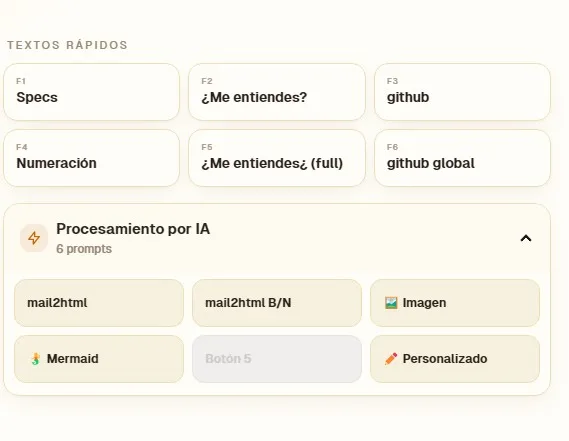
For those phrases you repeat a thousand times (your signature, a sign‑off, a template greeting) there are six quick‑text buttons, each mapped to F1–F6. One tap and they insert. Small detail, huge cumulative savings.
Enriched Markdown and HTML mode
When I want something to look truly nice, I enable Markdown mode. The text renders with its headings, lists, bolds... and even Mermaid diagrams if I need them. And if I switch to HTML, copying it pastes with styles already applied, ideal for emails that don't look like they were written in Notepad.
Paste an image and have it read to me
Another one that feels like magic: I copy an image with text —a screenshot, an invoice, a sign— I hit paste, and the app transcribes what it says. Zero manual typing of what's already written in a photo.
Details that make the difference
I don't want to bore you with the full list, but there are a bunch of little things designed for real day‑to‑day use:
- Infinite undo/redo history that survives closing the program.
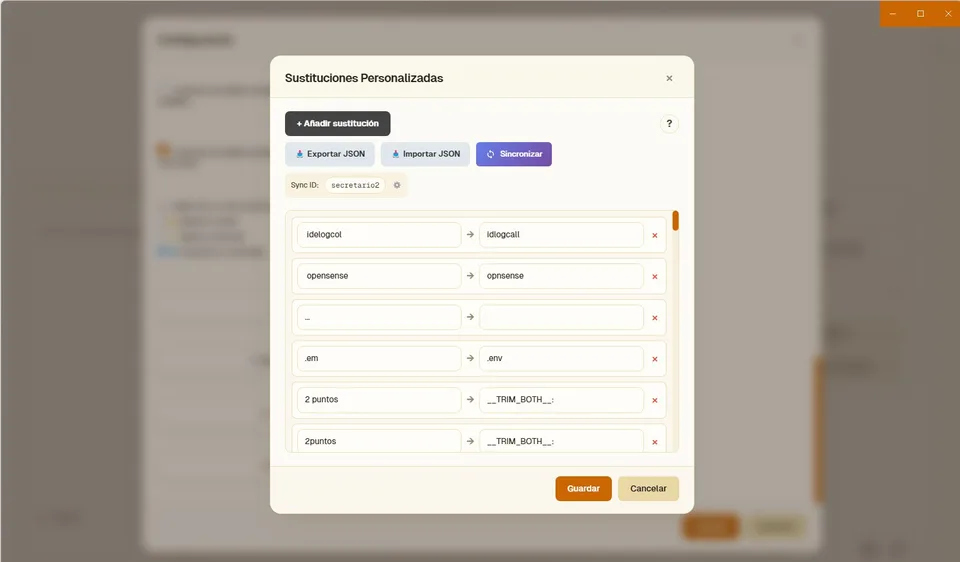
- Smart substitutions: I say "new line" or "colon" and it inserts them for real, not the words.
- Cross‑device synchronization, to take my texts and prompts wherever I go.
- Light/dark themes and an interface that adapts to the window width.
And what is all this good for?
Well, the usual stuff, but without the pain: answering emails in half the time, spilling raw ideas and having them come out organized, drafting without the friction of searching for the exact word while typing. I speak, the AI puts things in order, and I keep the time that used to be lost at the keyboard.
It's built with Electron, so it lives on the desktop like a classic application, no browsers or tabs involved.
The truth is I'm quite proud of how it turned out. It started as a "let's see if I can save a bit of time" and ended up being the tool I open and use the most every day.